Counterfeit MicroSD Cards
This page aims to detail the issues surrounding counterfeit MicroSD cards, as well as MicroSD cards sold under the brand name of real companies that do not sell MicroSD cards (known as “brand fraud” or “brandjacking”).
It’s important to avoid buying counterfeit MicroSD cards as you may experience data loss & slow performance.
All information on this page generally also applies to full size SD cards.
Counterfeit MicroSD cards and similar scams have become increasingly common as memory and flash storage prices have risen due to various market factors. While genuine MicroSD cards have risen in price, counterfeit cards often remain suspiciously cheap, making them appear to be attractive bargains. When shopping for a MicroSD card, be cautious of prices that seem too good to be true. A significantly lower price than comparable products from reputable retailers can be a warning sign of a counterfeit or misrepresented SD card.
(Overview) Checklist to avoid fake MicroSD Cards #
- ✓ Buy from trusted retailers or the manufacturer’s official website.
- ✗ Avoid AliExpress, Temu, Shein and Wish for MicroSD cards. Be cautious when buying from Amazon and eBay.
- ✓ Stick to well known MicroSD brands.
- ✗ Avoid unknown, generic or suspicious brands.
- ✓ Verify that the card is a genuine model listed on the manufacturer’s website.
- ✗ Be wary of prices that seem too good to be true.
If you suspect that you may have a fake MicroSD card, you can test it by following the instructions laid out in the Testing a MicroSD Card section of this page.
Fake MicroSD Cards #
Fake MicroSD cards are becoming increasingly common on online marketplaces.
They will typically look similar to genuine MicroSD cards and will be fakes of popular name brands. They’re often sold at an attractive price and may have fake reviews, many of which are AI-generated, or positive reviews from buyers who have not yet realised they have purchased a counterfeit card.
Counterfeit MicroSD cards will often have low-quality markings on the label, the incorrect font or be misaligned. If they come in branded packaging, the packaging will often be a low-quality photocopy, have the incorrect font and also may have spelling mistakes.
Below is an example of a genuine Samsung MicroSD card compared to a counterfeit. The stars highlight the differences:
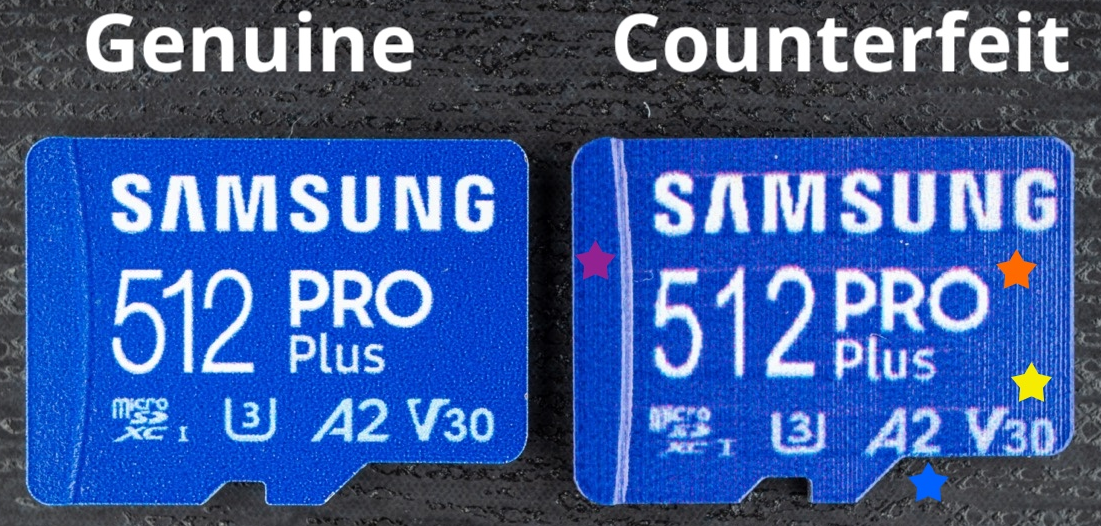
Image from Everything But Stromboli
Below is an example of a genuine Sandisk MicroSD card compared to a counterfeit. The font & print quality highlight the differences:
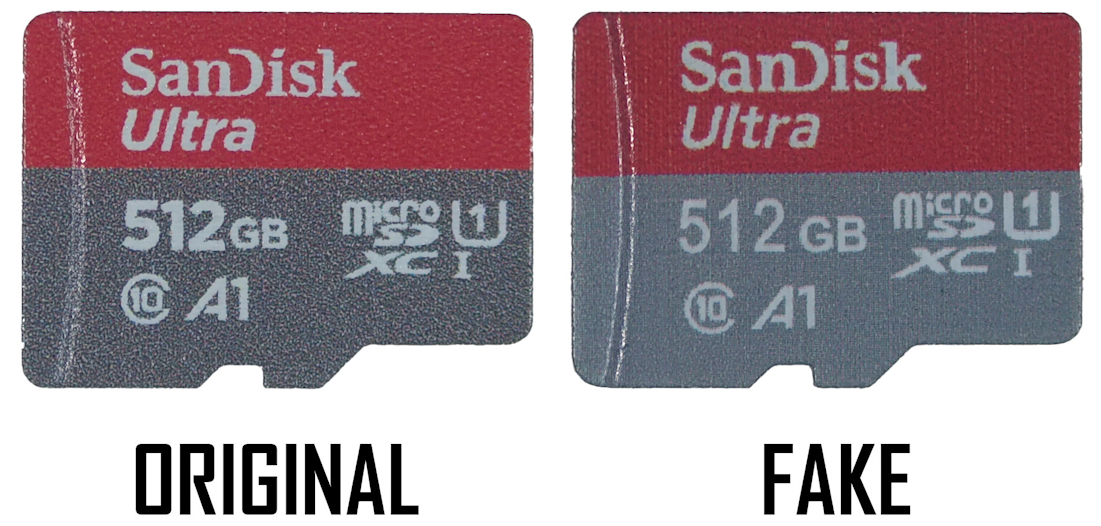
Image from sthetix on X
Fake capacities and performance #
Counterfeit MicroSD cards often use low-quality flash memory (typically factory rejected or QC rejected parts) and report a fraudulently inflated capacity. A card advertised and detected as 512GB may in reality only contain 64GB of storage, or even less. Performance is often poor as well, with read and write speeds falling far below the advertised specifications.
The only way to identify whether or not your MicroSD card is fake is to test it. There are instructions at the bottom of this page detailing how you can do just that. Looking at the MicroSD card’s properties will not reveal the fraud. Similarly, reformatting or repartitioning a fake MicroSD card will not “fix” its capacity. The MicroSD’s chip has specifically been programmed to always show its fake capacity even after reformatting. Once the card’s real storage limit is exceeded, data may become corrupted, overwritten, or lost. Even if you discover the card’s true capacity, it should not be trusted with important data.
This video by Atomic Shrimp provides an excellent overview of counterfeit MicroSD cards, including fake capacities and misleading performance claims, as well as what some fake reviews may look like. Although it was produced in 2023, the information remains relevant today.
If you want to ensure what you are buying is genuine, purchase directly from the manufacturer or from an authorised retailer listed on the manufacturer’s website.
Fake brands that don’t exist #
Often called “no-name” or “generic” MicroSD cards, these are cards sold under invented brand names with little or no established presence in the industry. Some are designed to resemble reputable brands, while others use entirely fabricated names.
Some commonly seen examples include Microdrive, Microdata, SanDian, ShanDian, Somnambulist, Olevo and numerous other invented brands continue to pop up on online marketplaces.
These cards frequently contain low-quality flash memory, fake capacities, or both, and should be avoided. It is generally safest to purchase MicroSD cards from well known brands rather than a brand you do not recognise.
Below are some examples:
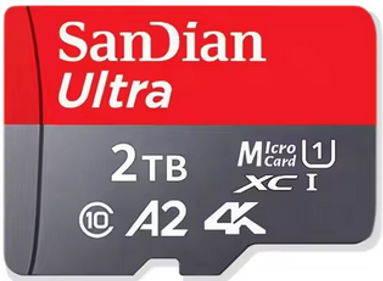
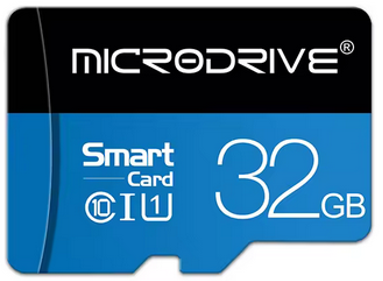
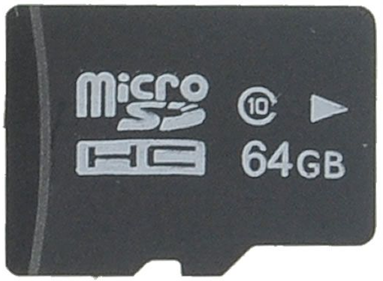
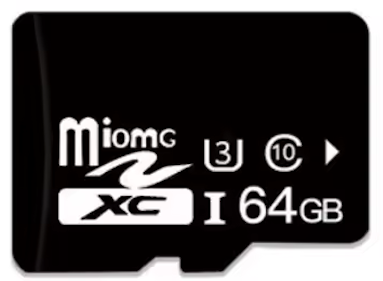
These examples were spotted on several online marketplaces.
Brand Fraud #
Brand Fraud is a tactic used by counterfeiters to sell a product fraudulently using the brand of a real company when that brand does not sell the product in question. This tactic fools consumers into believing they are buying a name-brand product. This is very common on online marketplaces, and the quality & reliability of these cards are often poor as well, often with a fake capacity.
Brands that do not sell MicroSD cards #
These brands have never sold MicroSD card under their names and therefore any MicroSD card sold under these brands are guaranteed to be counterfeit:
- Xiaomi
- Mi
- Huawei
Brands commonly used on counterfeit cards #
These companies have sold genuine MicroSD cards at some point, but almost all the the cards with these brands currently sold on most online marketplaces are counterfeit:
- Lenovo - Lenovo only sells MicroSD cards under their sub-brands; ThinkPlus, Monster and Legion, and not their main Lenovo brand. These products are only officially sold on the Chinese market. Lenovo branded MicroSD cards sold on most online marketplaces should be treated with extreme caution, as counterfeits of these are widespread.
- Sony - Sony used to make MicroSD cards but has not done so for years and any new Sony branded card is counterfeit.
Examples of MicroSD cards using brand fraud:
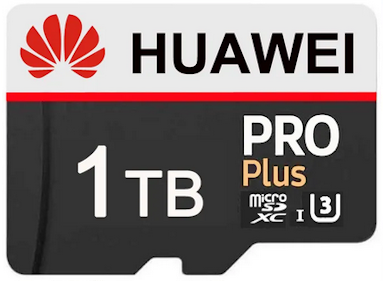
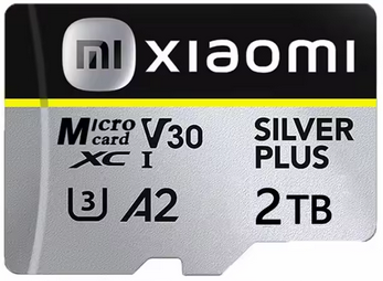
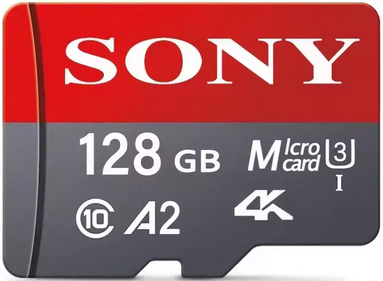
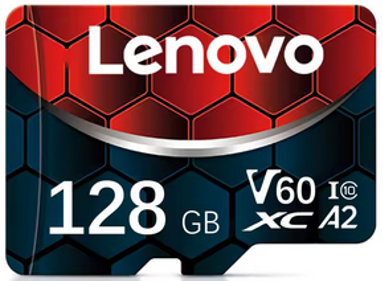
These examples were spotted on several online marketplaces. None are official products and they are likely to contain fake capacities, low-quality flash memory, or both.
Some companies legitimately sell MicroSD cards, but counterfeit versions of non-existent models are also commonly found online. These often use generic designs or copy the appearance of products from other brands, such as SanDisk-style “Lenovo” cards or Samsung-style “SONY” cards.
If you are unsure whether a MicroSD card model is genuine, check the manufacturer’s website to confirm that the model exists and matches the product being advertised.
Where to buy genuine MicroSD cards? #
There are various ways to ensure you are getting a genuine product.
- Avoid buying MicroSD cards from online shopping marketplaces such as AliExpress, Wish, Temu & Shein.
- Always buy from a trusted & reputable big name retailer; such as a retail chain store or a supermarket, or directly from the brand as mentioned below.
- Some name brands like Sandisk and Samsung have official online stores to buy genuine MicroSD cards directly from them. Other name brands will typically have a list of authorised sellers on their website:
- Sandisk: Online Store — Authorised Sellers
- Samsung: Online Store
- Kingston: Authorised Sellers
- Lexar: Authorised Sellers
- Kioxia (Formerly Toshiba): Authorised Sellers
- PNY Authorised Sellers
- Transcend: Authorised Sellers
- Integral: Authorised Sellers
- Supermarket own-brand MicroSD cards (such as Walmart Onn) are typically manufactured by name-brand companies and are also a good choice.
- This isn’t a complete list, nor is it a guide to which name-brands exist, however it is here to serve as an example.
- If you are buying from Amazon, ensure the product listing states that it is both “Sold” and “Shipped” by Amazon. “Fulfilled by Amazon” but sold by a different seller does not guarantee you will get a genuine product.
- Likewise, you will not be guaranteed a genuine MicroSD card from eBay, ensure the product you are buying has good reviews and is from a reputable seller.
Testing a MicroSD Card #
This section contains instructions on testing your MicroSD card for fake storage. Select the operating system you are using below to find specific instructions for your machine.
Windows #
ValiDrive #
ValiDrive can perform spot-checks on storage devices to verify whether or not the capacity they report is genuine. It is very fast in determining if a device has fake storage attached to it. However, it will often not catch cases where the reported capacity is real, but the storage is defective in some way. If you are looking to test for defective storage rather than fake storage capacities, you should follow the H2TestW instructions instead.
- Download ValiDrive from GRC’s website: https://www.grc.com/validrive.htm
- Once it has finished downloading, open ValiDrive and give it administrator privileges when prompted.
- If you have the MicroSD inserted into your computer already, remove it from your computer first.
- Click the
Check USB Drivebutton, then insert your MicroSD card when it tells you to. - Wait for the test to complete.
Here is an example of the ValiDrive results obtained from a genuine storage device:
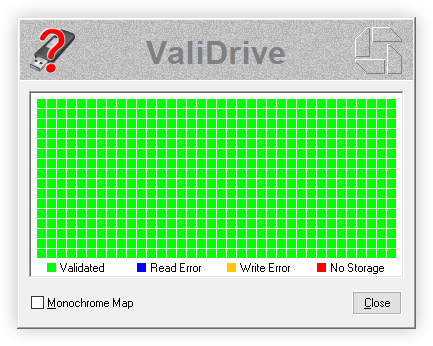
Real, functional storage will only show green squares in the results. If there are any blue, red, or yellow squares shown in the results from ValiDrive, the storage device being tested is likely to be fake/defective and therefore should not be used. An example of the results obtained from a fake storage device can also be seen in the image below:
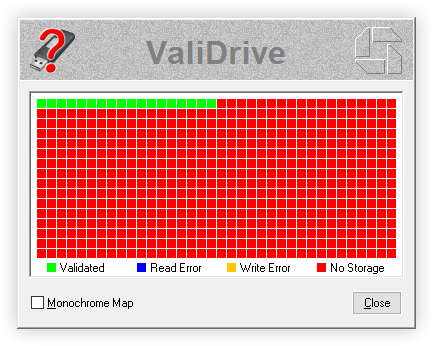
Images taken from the ValiDrive homepage
H2TestW #
H2TestW works by first filling up the free space of a storage device with test data. Then it will verify that the test data can be read back correctly. It is far slower than ValiDrive at identifying fake storage. It is better suited for cases where the reported storage capacity is real, but the storage itself is defective.
- Download H2TestW from it’s official website: https://www.heise.de/ct/Redaktion/bo/downloads/h2testw_1.4.zip
- Once it has finished downloading, open H2TestW. You may wish to change the language at this point.
- Click
Select targetand choose to use your SD card. - Ensure that
all available spaceis selected, then clickWrite + Verify. - Wait for the tests to complete. This will take a while.
If the test finishes without errors, the storage device should be good to use. However, if the progress bar turns red and data is marked as having been lost, the storage device is fake and/or defective and should not be used.
Mac OS #
F3 #
F3 includes two programs known as f3read and f3write. They both work in a similar manner to H2TestW on Windows. f3write is first used to fill up the free space of a storage device with 1GB files. f3read will verify that it can read in the data from those files correctly.
- Install F3 using either Homebrew (
brew install f3) or MacPorts (port install f3). - Insert the MicroSD card to be tested into your computer.
- Backup and remove all of the data stored on the MicroSD card so that the full storage capacity of it can be tested.
- Run
f3write /Volumes/<SD card name>in a terminal and wait for the process to complete. This may take a while. - Once f3write is finished, run
f3read /Volumes/<SD card name>in a terminal. This may also take a while to complete.
Here is an example of the results obtained from testing a genuine MicroSD card:
$ f3read /Volumes/SD\ CARD
F3 read 9.0
Copyright (C) 2010 Digirati Internet LTDA.
This is free software; see the source for copying conditions.

                  SECTORS      ok/corrupted/changed/overwritten
Validating file 1.h2w ... 2097152/        0/      0/      0
Validating file 2.h2w ... 2097152/        0/      0/      0
Validating file 3.h2w ... 2097152/        0/      0/      0
[...]
Validating file 28.h2w ... 2097152/        0/      0/      0
Validating file 29.h2w ... 2097152/        0/      0/      0
Validating file 30.h2w ...  229312/        0/      0/      0

  Data OK: 29.11 GB (61046720 sectors)
Data LOST: 0.00 Byte (0 sectors)
               Corrupted: 0.00 Byte (0 sectors)
        Slightly changed: 0.00 Byte (0 sectors)
             Overwritten: 0.00 Byte (0 sectors)
Average reading speed: 89.22 MB/s
If there is any data marked as having been lost, you should replace the MicroSD card as it is either fake, or is dying and should not be used. If everything is OK, you can delete all of the *.h2w files from the MicroSD card and use it as you normally would.
Linux #
F3 Probe #
f3probe is one of the extra programs that F3 provides. It can be used to quickly determine if a storage device is faking it’s real capacity. If you are looking to test for defective storage rather than fake storage capacities, you should follow the F3 Read/Write instructions instead.
Note: You must run this tool as root in order for it to work!
- Install F3 using your distribution’s package manager.
- If F3 is not available in the distro’s package repositories, you should compile F3 from source instead. You can find the instructions to do this here: https://github.com/AltraMayor/f3 - ensure that you compile the extra applications too as that is required for
f3probe.
- If F3 is not available in the distro’s package repositories, you should compile F3 from source instead. You can find the instructions to do this here: https://github.com/AltraMayor/f3 - ensure that you compile the extra applications too as that is required for
- Insert the MicroSD card to be tested into your computer.
- Run
f3probe /dev/<device>in a terminal as root.- If you get an error stating that you have run out of memory, run
f3probe --min-memory /dev/<device>instead. - If the error persists, backup all of the data on the storage device, then run
f3probe --destructive /dev/<device>. It is essential that you backup the data stored on the device beforehand as this will, as the option implies, destroy it.
- If you get an error stating that you have run out of memory, run
- Wait for the test to complete.
Here is an example of the results obtained from testing a genuine MicroSD card:
# f3probe /dev/sdb
F3 probe 9.0
Copyright (C) 2010 Digirati Internet LTDA.
This is free software; see the source for copying conditions.

WARNING: Probing normally takes from a few seconds to 15 minutes, but
         it can take longer. Please be patient.

Probe finished, recovering blocks... Done

Good news: The device `/dev/sdb' is the real thing

Device geometry:
                 *Usable* size: 29.12 GB (61071360 blocks)
                Announced size: 29.12 GB (61071360 blocks)
                        Module: 32.00 GB (2^35 Bytes)
        Approximate cache size: 0.00 Byte (0 blocks), need-reset=no
           Physical block size: 512.00 Byte (2^9 Bytes)

Probe time: 1'22"
If you instead get one of the following messages:
Bad news: The device '/dev/<device>' is damagedBad news: The device '/dev/<device>' is counterfeit of type [...]
You should replace your MicroSD card. It is either fake, or damaged to the point where it should no longer be used.
F3 Read/Write #
F3 includes two programs known as f3read and f3write. They both work in a similar manner to H2TestW on Windows. f3write is first used to fill up the free space of a storage device with 1GB files. f3read will verify that it can read in the data from those files correctly.
- Install F3 using your distribution’s package manager.
- If F3 is not available in the distro’s package repositories, you should compile F3 from source instead. You can find the instructions to do this here: https://github.com/AltraMayor/f3
- Insert the MicroSD card to be tested into your computer and mount it.
- Backup and remove all of the data stored on the MicroSD card so that the full storage capacity of it can be tested.
- Run
f3write <mount point>in a terminal and wait for the process to complete. This may take a while. - Once f3write is finished, run
f3read <mount point>in a terminal. This may also take a while to complete.
Here is an example of the results obtained from testing a genuine MicroSD card:
$ f3read /media/deletecat/1B03-2A0A/
F3 read 9.0
Copyright (C) 2010 Digirati Internet LTDA.
This is free software; see the source for copying conditions.

                  SECTORS      ok/corrupted/changed/overwritten
Validating file 1.h2w ... 2097152/        0/      0/      0
Validating file 2.h2w ... 2097152/        0/      0/      0
Validating file 3.h2w ... 2097152/        0/      0/      0
[...]
Validating file 28.h2w ... 2097152/        0/      0/      0
Validating file 29.h2w ... 2097152/        0/      0/      0
Validating file 30.h2w ...  229312/        0/      0/      0

  Data OK: 29.11 GB (61046720 sectors)
Data LOST: 0.00 Byte (0 sectors)
               Corrupted: 0.00 Byte (0 sectors)
        Slightly changed: 0.00 Byte (0 sectors)
             Overwritten: 0.00 Byte (0 sectors)
Average reading speed: 89.22 MB/s
If there is any data marked as having been lost, you should replace the MicroSD card as it is either fake, or is dying and should not be used. If everything is OK, you can delete all of the *.h2w files from the MicroSD card and use it as you normally would.
Disclaimer #
The information on this website is compiled from publicly available community sources & documentation. Flashcarts.net, its members, moderators, and contributors do not manufacture, sell, endorse, or guarantee any products referenced. No warranties, express or implied, are made regarding accuracy, completeness, compatibility, pricing, availability, or potential damage to hardware or software. Flashcarts.net is not affiliated with any manufacturer, retailer, or vendor. All information is provided for informational and educational purposes only and is used at your own risk.

This work is licensed under a Creative Commons Attribution-NonCommercial-ShareAlike 4.0 International License.